
VISION ERP – Training Guide
360-Dispaching and Transacting Delivery Tickets Rev. Mar 20, 2018 created Jan 15, 2018
Pre-route
Always start requests in VSM. The information will pass to NS (NetSuite) and create a SO once request is saved.
Scheduled Deliveries
- In VSM go to “Menu” > “Requests Today”
Note: CSR should not dispatch too many days in advance since deliveries can change often).
- Look for clients in the list that are in credit hold. VSI>Menu> Requests on Credit Hold. The list will include everyone on credit hold scheduled for the next 3 days including present day.
Contact people that are on the list to see if we can get payment prior to delivery, otherwise either remove them or approve delivery. (Right now, the system is not doing it automatically, but it should soon, so for now that list needs to be manually compared to NS. For clients that are already in good standing but are still in credit hold in VSI, go to the “Financial” tab in the clients file, “Edit” and turn it off. Once “save” is pressed it will update VSI and that customer will automatically be removed from credit hold list.
In NS pull a report called “CMH delivery dispatch Review”, filter by date and look for people that are 60 days or more past due. Cancel requests if needed)
- Route Optimization - In V-Scheduler, choose day, and under jobs COG (little gear icon), Pick Driver(s)> Run Job. (Make sure that you are in the right branch)
- CSR should look at the map and physically verify that jobs were assigned and assigned correctly. If Needed, CRS can always change jobs around clicking and dropping them in the right place or driver.
Will calls and unscheduled deliveries.
Create a request in VSI.
Note: For all creation of requests refer to “Create Requests in VSI”
Post-Route
Transacting Deliveries
VSI is set up to process and invoice automatically deliveries as soon Driver/Tech completes job on the handheld. There are some workflows in place to do just that, however, some instances, the job falls out of the regular workflow and in those cases CSR has to review it and make sure it gets invoiced in NS.
For a list of failed to pass Transactions/Requests, open VSI >Menu> Request Tracking> Filter> then choose request type (service, install, delivery, etc.) followed by status “Resolved” and lastly enter “Scheduled Date” and press ok.
Once the list shows up, click on the name/request to be transacted. Look under the different tabs if information is correct.
“Main Information” - Check if “contract, “billing rule “, “billable” “Per Call” are correct.
Then check “Service Template”, “activities”, “Parts”, “Charges” – If all correct then go to “Service & Billing” tab and look that CBD (Consolidated Billing Document) has been created. If created open it and make sure it has all the charges in it> Save > confirm and close window. Close request.
If CBD is incorrect, “delete” (it will ask to confirm) and then create “New”.
By creating a “New” the system will again compile all the information of the request from the different tabs and create a new CBD. Open it and verify if information is now correct. If so, “Save”> “confirm”>close window> “Close” request and confirm.
Once this is done, it shows in NS. (Copy and paste the SO from the request into to the global search in NS.)
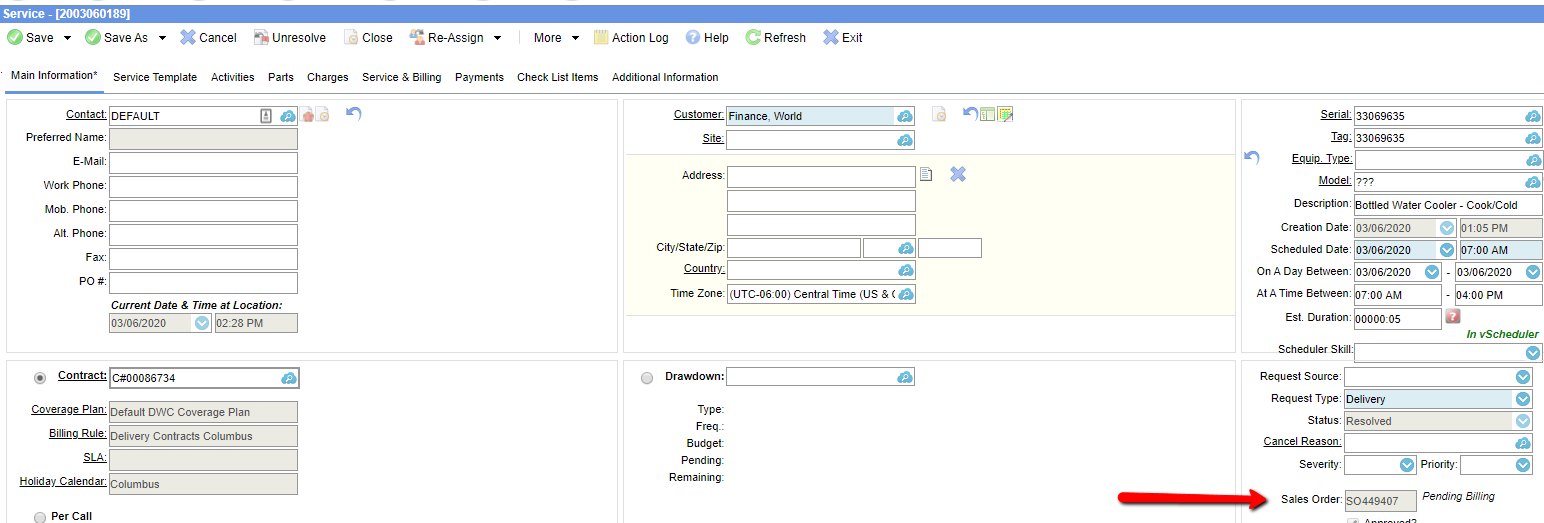
In NS (NetSuite), choose customer>Transactions >SO.
Complete SO by creating invoice.
Important: In NS, SO should show as “Pending Billing” so it only needs to save and would create an invoice, but if it shows “Pending Fulfilment”, then SO needs to be fulfilled and shipped before invoicing it.
Note: Most delivery SO will bill automatically when these 3 conditions are present: Number of parts, Subtotal and qty in NS matches the subtotal of the CBD. On those cases the SO will indicate “Billed” and an invoice has been created.